
Promotions
Run seasonal offers that clean up after themselves.
Run time-limited promotions: feature services for a date range, or auto-discount an add-on. Applied automatically — no codes.
Opens a real workspace with sample data — no signup, nothing to install.
Where it appears
Featured services appear in a highlighted section on your booking page while the promotion runs.
What your customers see
Customers see the promotion automatically and can only book within its dates — discounts apply with no code to enter.
Why it matters
Drive seasonal bookings and add-on sales without manual cleanup — promotions expire and hide themselves.
How it works
Pick what to push, and for how long
A promotion runs between two dates you choose. Either feature a set of services — they get lifted into a highlighted block at the top of your booking page — or pair a service with an add-on that gets discounted when both are booked together.
There's no code to hand out
The offer is simply live on your booking page for anyone who visits. Customers see the highlight, and the discount is already in the price by the time they reach the summary — nothing to type, nothing to remember, nothing for you to explain.
It stays inside its own dates
Featured services can only be booked within the promotion's window; the calendar won't offer dates past the end. That means a summer offer can't be claimed for an October appointment.
It ends by itself
On the last day the highlight disappears, the services drop back into their usual categories and prices return to normal. Nothing to remember, nothing to undo — the promotion just shows as Expired in your list.
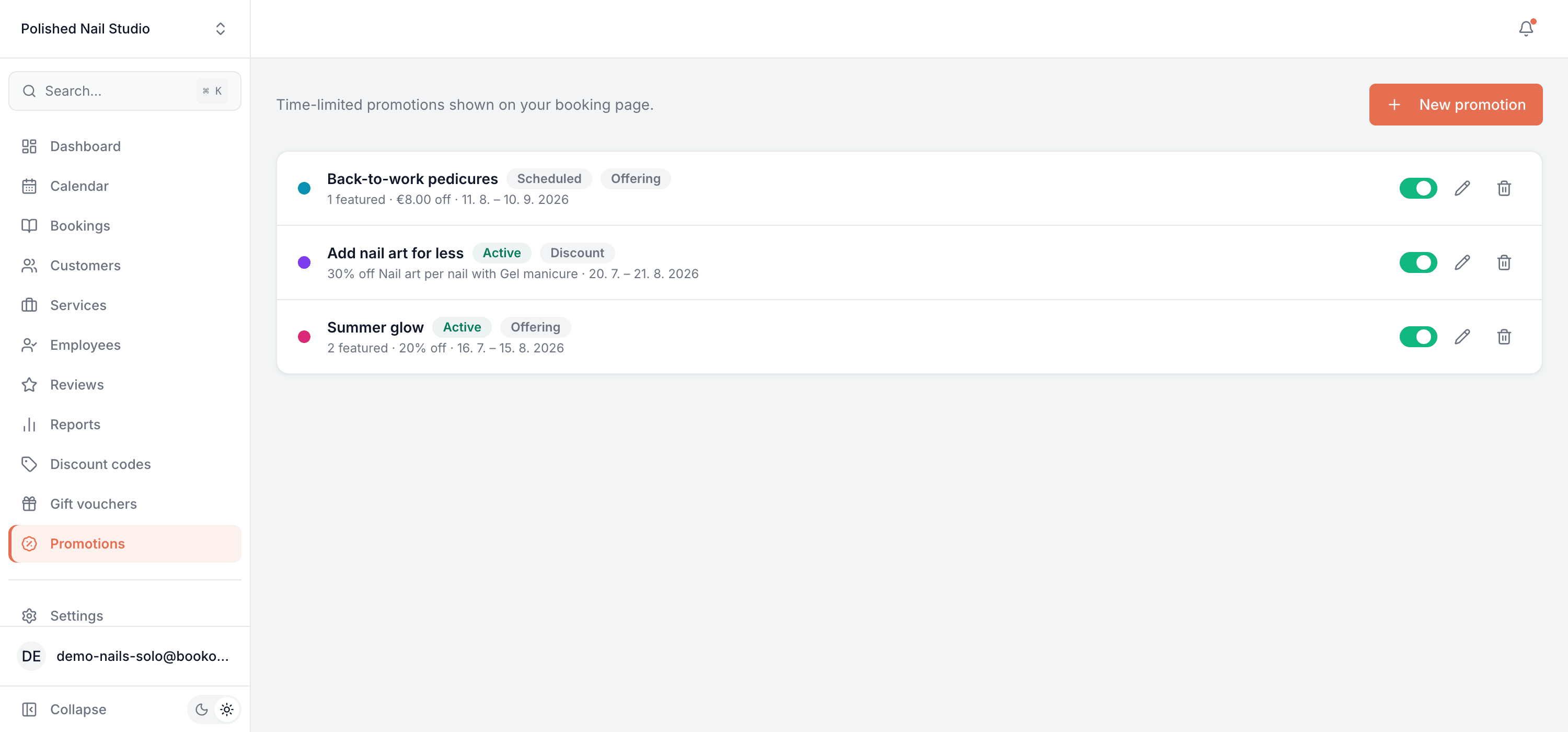
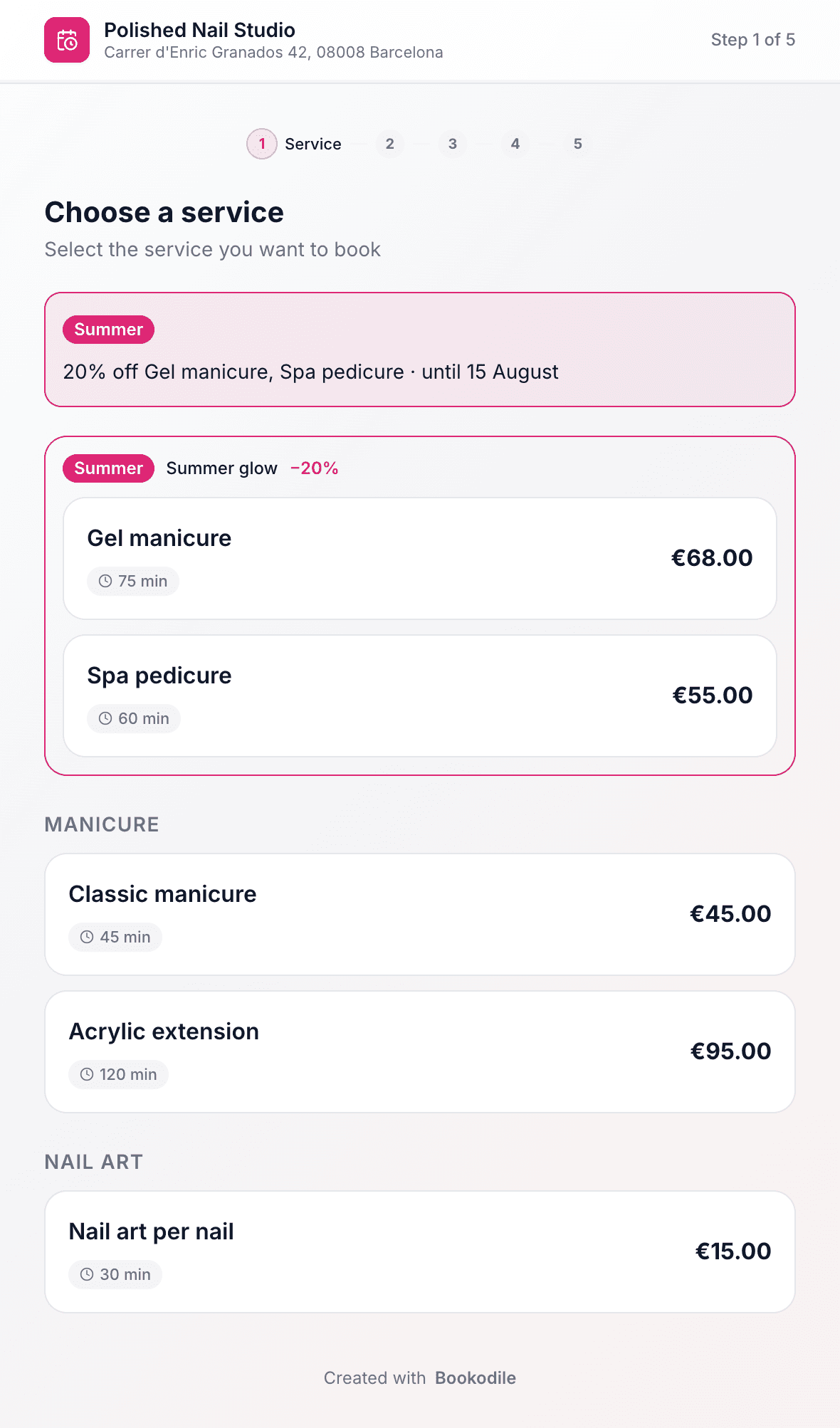
This is real sample data you can click through yourself.
Made for your business
However you take bookings, here's what it looks like for you.
Barbershop
Feature skin fades at 15% off for the two weeks before the holidays, and let the offer close itself on the last day.
Nail & beauty studio
Highlight gel manicures and spa pedicures for a summer push, with an announcement across the top of the booking page.
Gym & studio
Pair an intro session with a discounted follow-up block, so the upsell is priced in automatically at checkout.
Photo studio
Run an autumn family-portrait offer that can only be booked for autumn dates, not carried into next spring.
Common questions
- Do customers need a code?
- No — that's the point. The offer is already applied to anyone booking a featured service inside the dates. Codes are a separate add-on if you'd rather control who gets a discount.
- What are the two kinds of promotion?
- A featured promotion lifts chosen services to the top of your booking page for a date range, optionally with money off. An add-on promotion discounts a particular extra when it's booked alongside a specific service.
- What if two promotions cover the same service?
- The customer automatically gets the bigger saving. You'll see a warning when you set up an overlap, so it's never a surprise.
- Do I have to turn it off when it ends?
- No. The end date does it for you — the highlight and the discount both stop, and the promotion simply shows as Expired. You can switch it back on or edit the dates any time.
- Can it stack with a discount code or gift voucher?
- Yes. The promotion price is worked out first, then a code and any voucher balance come off what's left.
- Can I see how much a promotion earned?
- Bookings are tagged with the promotion that applied, but there's no dedicated promotion report yet — you'd read the numbers from your Reports page over the promotion's dates.
Ready to try Promotions?
It's included in Bookodile — turn it on in a click, no setup required.