
Calendar
Day, week and month — every booking in one view.
The whole shop's schedule in one place — day, week or month — with every appointment colour-coded, drag-to-reschedule, and the full detail one tap away.
Part of every plan — nothing to switch on.
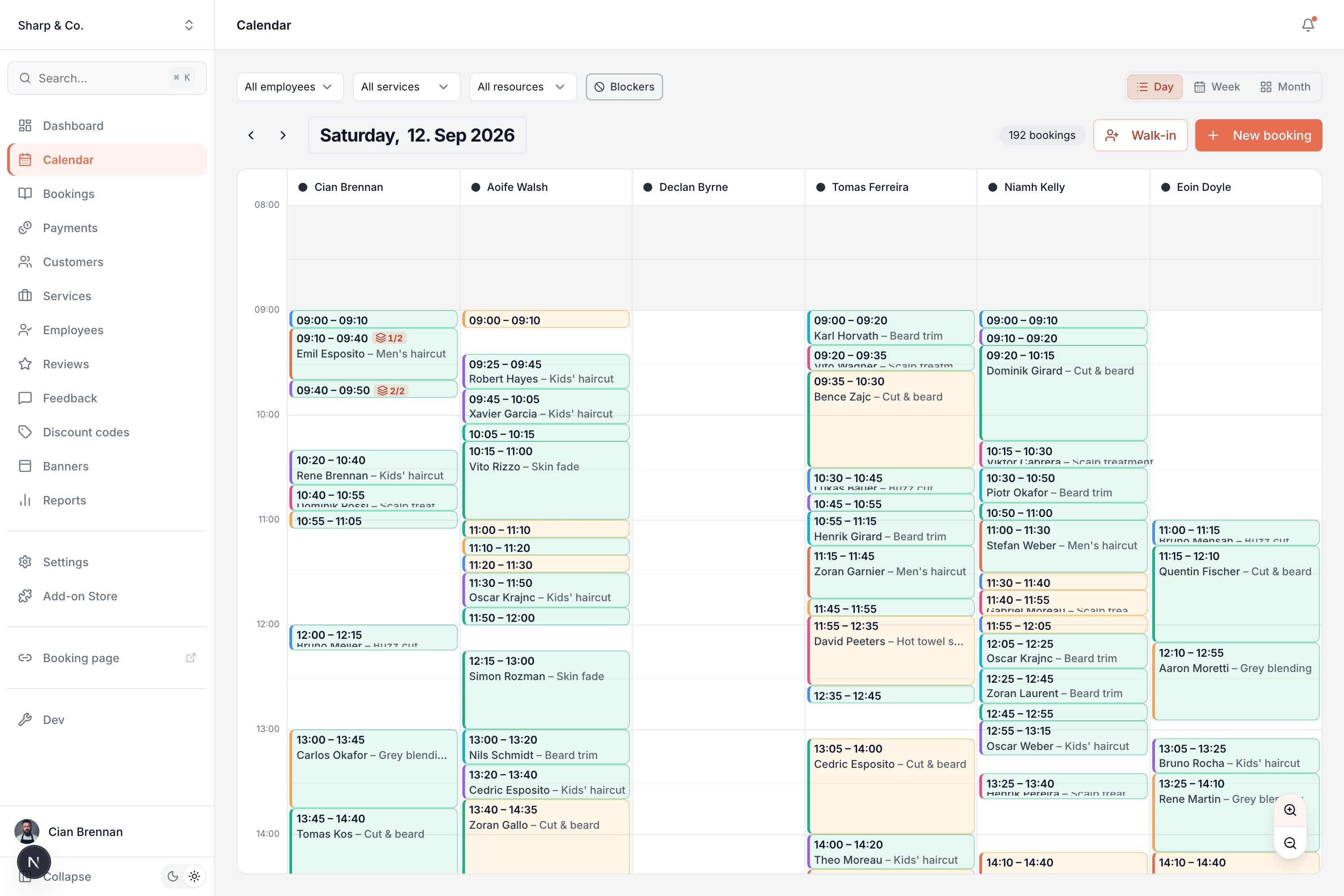
Day, week or month
Switch between a focused day, the whole week, or a month at a glance — whichever fits what you're checking.
Drag to reschedule
Move an appointment to a new time or a different team member by dragging it — no forms, no re-entry, and a visit with several services moves as one.
Filter the view
Narrow to one team member or one service so a busy calendar shows only what you're looking for.
Block out time
Add lunch, a meeting or a day off as a blocker — once, or repeating every day, week, two weeks or month — and those hours stop being offered on your booking page.
Add a walk-in
Someone drops in? Add them straight onto the calendar in a couple of taps, no booking page needed.
Full detail on tap
Tap any slot for the customer, service, price and status — and change any of it right there.
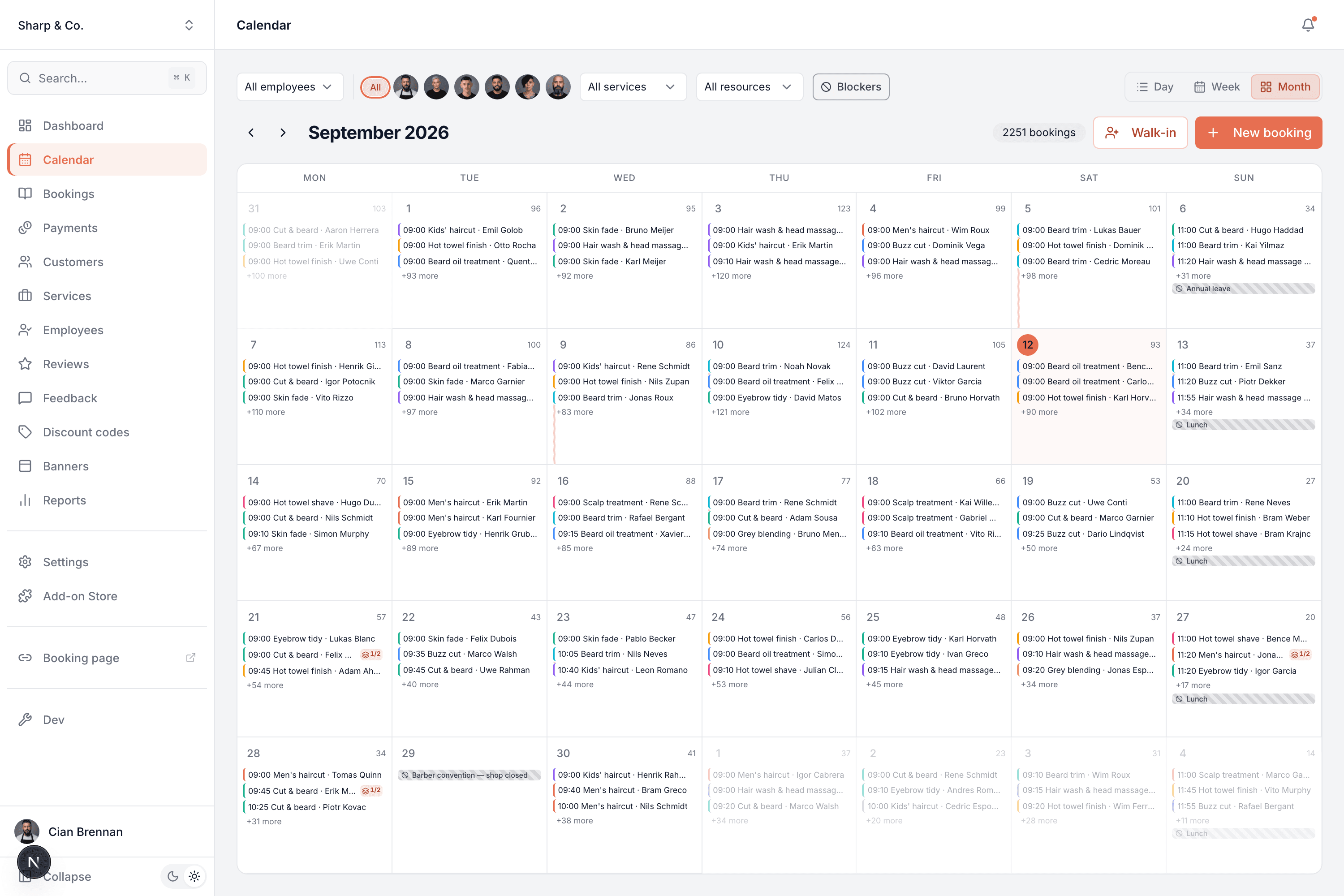
Day, week, or the whole month
See exactly as much as you need. The day view is your running order for today; the week shows the shape of the days ahead; the month is the big picture — how busy you are, where the gaps are, which days are filling up.
- Every appointment colour-coded by service
- Busy days and quiet gaps obvious at a glance
- Jump forward and back a day, week or month at a time
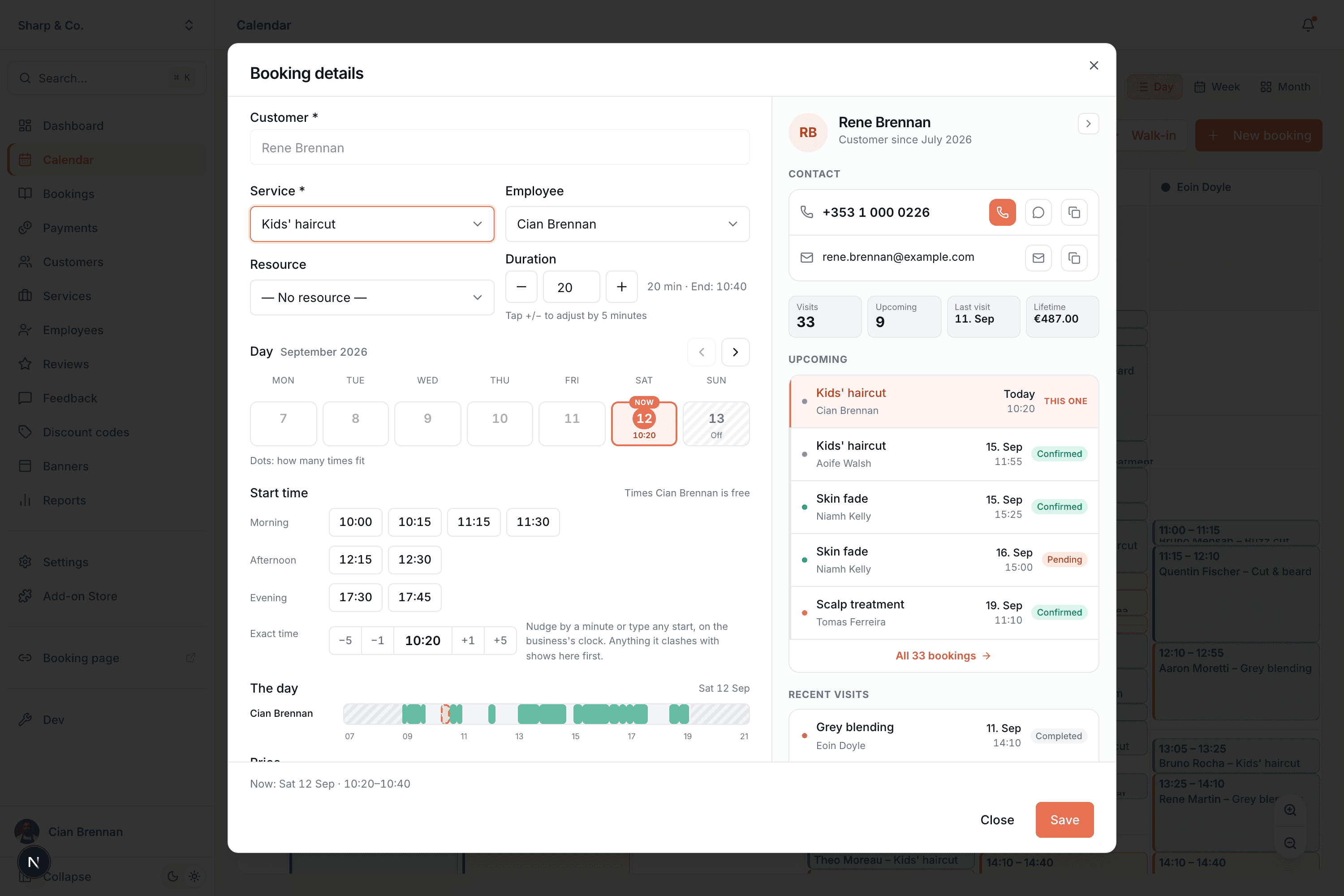
Change a booking without leaving the calendar
Tap any appointment and everything is right there — who's coming, what for, with whom, the price and the status. Reschedule it, reassign it, adjust the time in five-minute steps, mark it completed or a no-show, or add an internal note. When a visit has several services with different team members, move or cancel it as one — only at times that fit everyone.
- Reschedule or reassign in place — a whole visit at once
- Set the status — confirmed, completed, cancelled, no-show
- Override the price or leave a private note
Common questions
- Can I see just one team member?
- Yes. Filter the calendar to a single team member — or a single service — so a busy shop shows only the appointments you care about right now.
- How do I reschedule?
- Drag the appointment to its new time or team member, or open it, tap Edit on its day and time, and pick a day and one of the start times that fit — or choose another time, any day and any minute, even one that clashes. Every move is checked against the team member's hours, time off and other bookings, and asks first if something clashes; changed in the booking itself, the customer can be told the new time by email, by SMS when you send texts, or both. Drag one service of a visit with several and the whole visit moves with it. Or open any of them and choose Move visit: pick a day and a start time that fits everyone, every service moves together, and the customer can get one email with the new times, an SMS, or both.
- Can I block out time I'm not available?
- Yes. Add a blocker for lunch, a meeting, holiday or any personal time, and those hours are removed from what customers can book online. A blocker can also repeat — every day, every week on the days you pick, every two weeks or every month, with or without an end date — so lunch every weekday is one blocker, and each team member can set their own.
- What about walk-ins?
- Add them straight onto the calendar with the Walk-in button — no need to go through the booking page.
- Does it show the whole team?
- Yes. The calendar shows every team member's bookings together, so you see the whole shop's day, not just one person's.
Calendar is in every Bookodile account
Along with everything else you need to take bookings — nothing to switch on, no add-on required.